
Tracking is viewed on internet-browser by HTML-application or java-applet. Links for this appear in each event's page in EVENTS section.
On Chrome 45 and higher java is no longer supported. HTML-application doesn't require java and works in mobile devices too.
NEW 2012-04-12 GPSsbit - a small javascript-based "gps-player" to present tracking highlights in a web page.
Old trackings (2007-2009) can be viewed also with special Windows-software.
Download most recent version:
GPSseuranta2 HOME EDITION in English
GPSseuranta2 HOME EDITION FIN in Finnish
updated 2009-06-10 (1,1 MB exe)
Only for Windows (and for Linux with Wine).
Instruction for Windows tracking application.
Archived tracking routes can be viewed also as jpg-files Link for 2007-2009 trackings
Double-click map -> nearest competitor's name is shown for 5 seconds
Shift+click map -> all checked competitors are moved to that point (or nearest place on their routes). Works only in REPLAY-mode. These offsets can be removed with lower-left settings panel's Offset tab's Reset all- button.

With upper-left switches it's possible to change between LIVE/REPLAY modes and REAL TIME/TIME FROM START modes.
Almost real-time situation is shown second by second. However program has a small buffer in order to show trackings smoothly.
Fast replay can be viewed:
Program uses normal time (from event time zone).
Time used is each competitor's time from her/his start time = "simulated mass-start".
In LIVE-mode TIME FROM START uses last starter's time (among selected competitors).
If you want to quickly see how someone is doing compared to earlier starters, use LIVE and TIME FROM START-modes, select the competitor in question and click ->Sel.

Map can be moved by dragging and by clicking the upper-right minimap: Minimap includes also zoom-buttons.
Some parts of application window can be hidden/shown with narrow two-arrow -buttons.
If a marker has grey edge, there is no actual position data available for that timestamp. So competitor has not stopped...

Double-clicking a name in one of the namelists makes a competitor highlighted. Map is centered and letters next to marker are bordered. Highlighting is removed with another double-click.
Lower-left corner has some setting-tabs:
By default each competitor has one minute tail. Lenght of the tails can be adjusted, or tails can be removed so that all routes are drawn. Drawing all routes for large number of competitors can make application slow.
Checkbox "Not highlighted" makes all routes drawn for highlighted competitors despite of other tail settings.
Opacity, zoom, appearance of minimap and font size for competitor list can be adjusted. Off-setting hides the whole list.
With right double-arrow -button Splits panel is shown. It's possible to draw own split lines and application caluclates times when each competitor has crossed that line. "Laps" mean crossing the same line several times.
With ALT + right-click you get split-point instead of split-line. Split time is competitor's nearest time to given point if that is max radius meters away. Laps are meaningless with split points.
Sectors-tab gives possibility to calculate used time between two split lines. Sector times there are not updated automatically, but use of Calculate-button is needed.
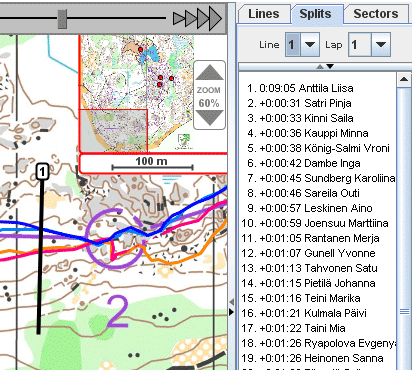
Splits-tab has two extra functions. Arrange by splits -button sorts namelists according to current splits list. Generate "mass-start" -button adjusts each competitor's offsets so that they are all at the same time in the current split line. Offsets can be removed with lower-left settings panel's Offset tab's Reset all- button.
Generate "mass-start" is available only in REPLAY-mode.
With IN-OUT -setting for example last 50 m before and first 50 m after split point (not -line) are timed